What we'll do today 🎮
You've met your car and built it — now let's take the wheel. There's no coding today (that's coming later!). Instead you'll use two ready-made remote controls that ELEGOO already put inside your car: the tiny IR remote from the kit, and a free phone app called ElegooKit.
The best part? Your car has a camera, and the app lets you watch a live video of whatever the car is looking at — like a little robot's-eye view. By the end of today you'll be zooming your car around the room from across the room. Let's drive!
What you need
- Your Smart Robot Car V4 — built and charged, ready to switch on
- The little black IR remote from the kit
- A phone or tablet (with the App Store or Google Play on it)
- A flat, clear patch of floor to drive on
Let's take control! 🕹️
Drive with the IR remote
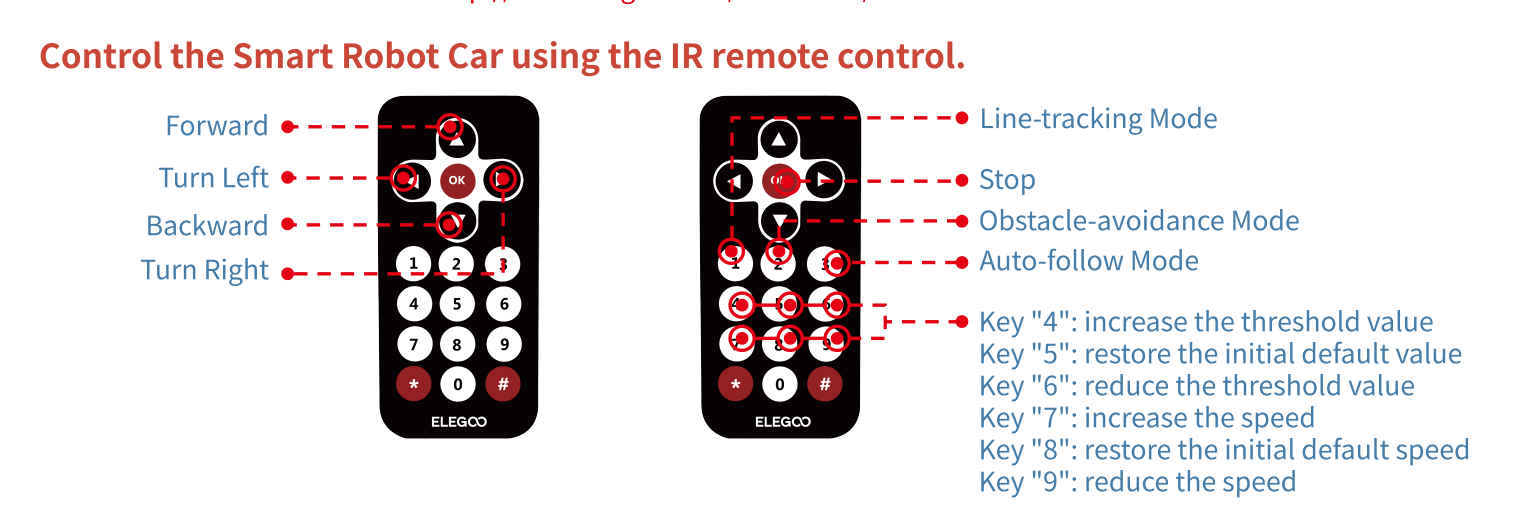
Your car already has a driving program loaded at the factory, so the remote works right out of the box. Switch the car ON, set it on the floor, then pick up the remote and point its front straight at the car. Press the arrow buttons to drive: Forward (up), Backward (down), Turn Left, and Turn Right. You're driving a robot! 🏎️
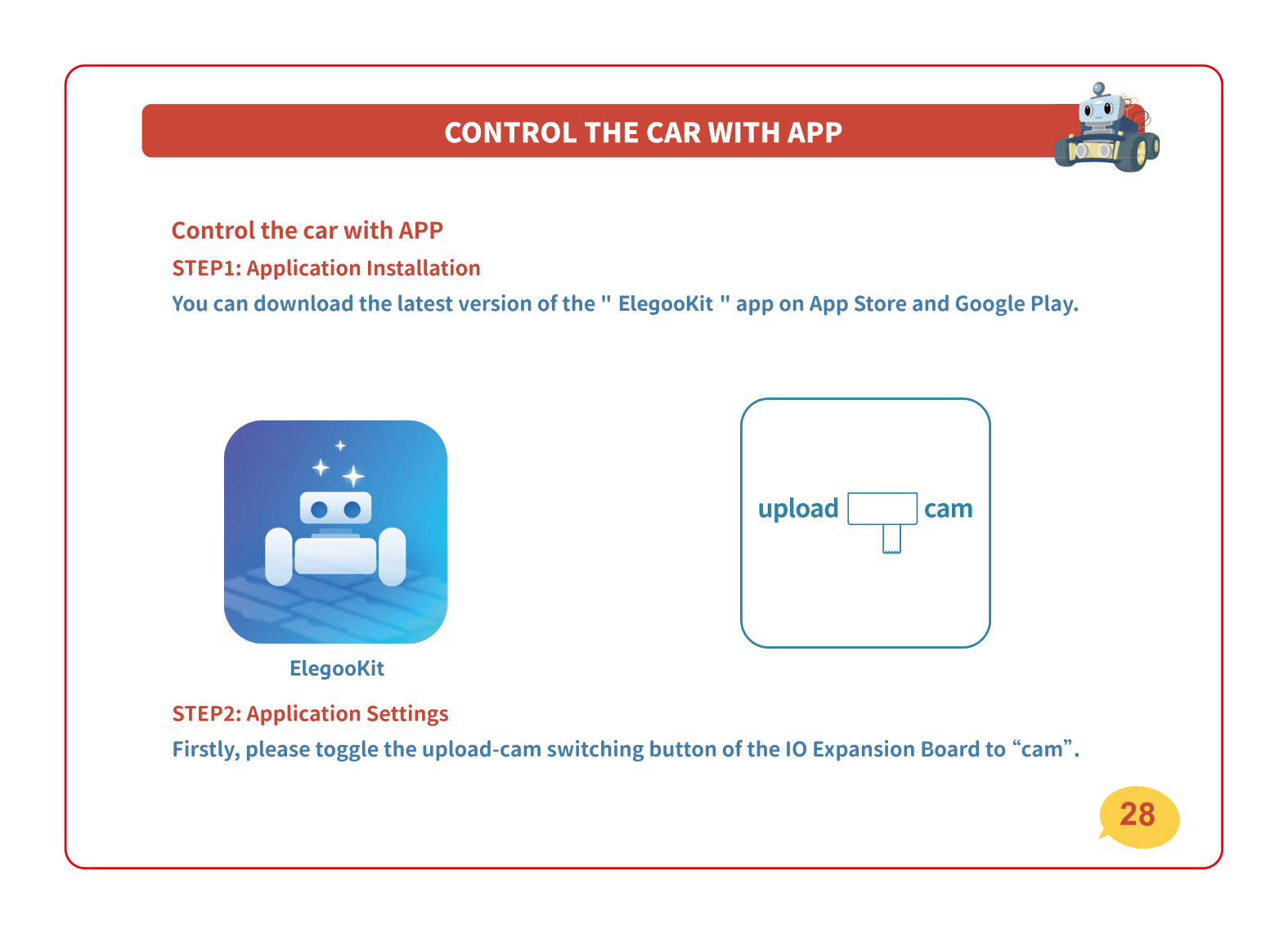
Get the app, then flip the switch to "cam"
Now for the phone! On your phone or tablet, open the App Store (Apple) or Google Play (Android), search for "ElegooKit", and install it — it's free. While that downloads, look at your car's top board (the IO expansion board) and find the little upload ⇄ cam slide switch. Slide it over to "cam". That tells the car to turn on its camera and Wi-Fi so your phone can find it.
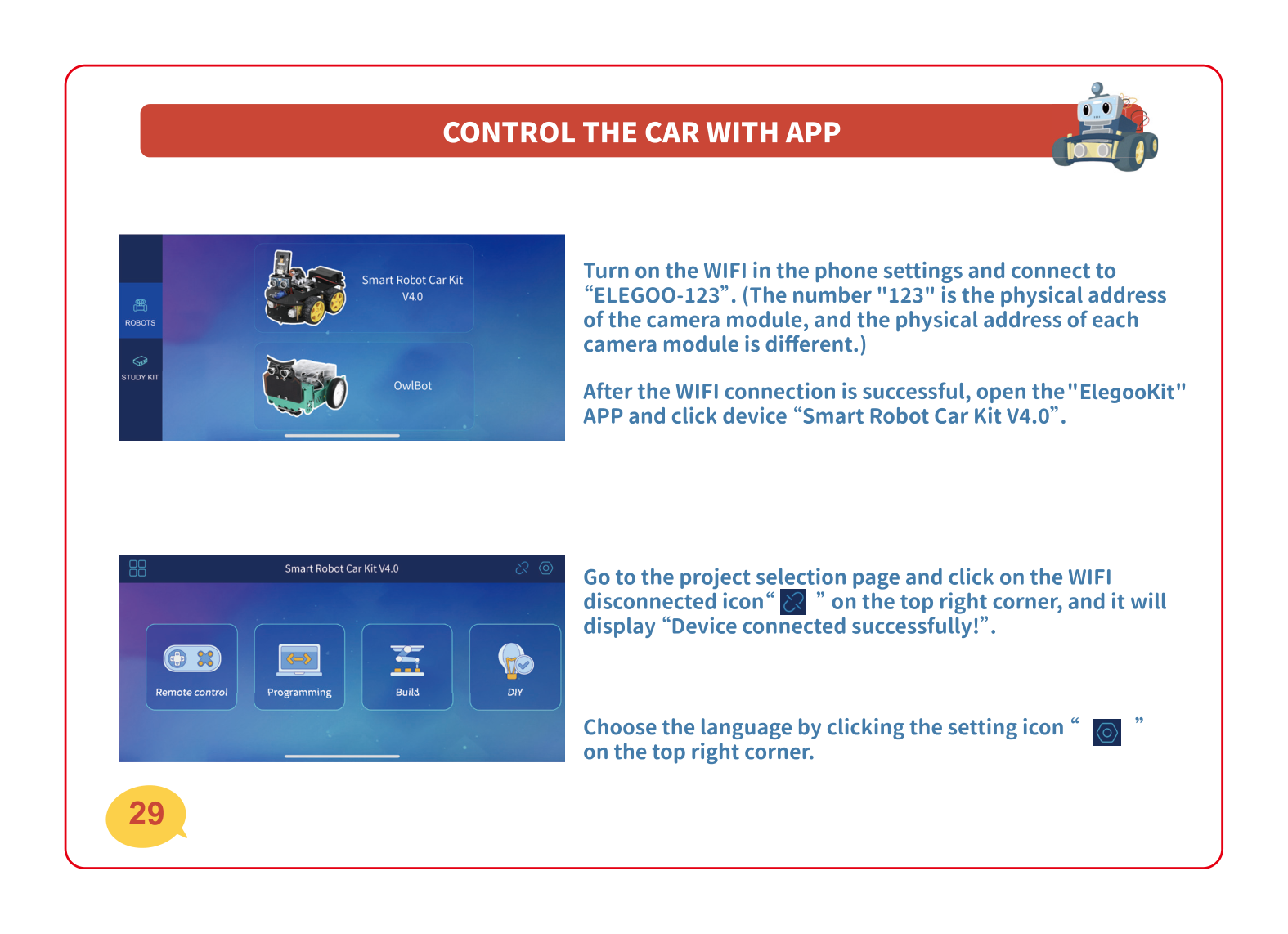
Connect your phone to the car
With the car switched on and its switch on "cam," go to your phone's Wi-Fi settings. Look for a network named "ELEGOO-123" (your number will be different) and join it. Then open the ElegooKit app, choose "Smart Robot Car Kit V4.0", and tap the little Wi-Fi "connect" icon in the top-right corner. When it says "Device connected successfully!" — you're in! 🎉
Drive from your phone
In ElegooKit, tap "Remote control." You'll see an on-screen joystick — push it in the direction you want the car to go, and the car follows! Push up to go forward, down to back up, left and right to turn. It's just like the handheld remote, but on your screen and with no need to point it at the car. 🕹️
See through its eyes 👀
Here's the magic part. Because you flipped the switch to "cam," the app shows a live video from the camera on the front of your car — this is called FPV (First-Person View). Drive around while watching the screen and you'll see exactly what your robot sees! You can also rotate the camera from the app to look up, down, and around without moving the car.
If something's not working
The IR remote doesn't do anything
First, pull the thin plastic tab out of the back of the remote — new remotes ship with one blocking the battery. Then make sure the car is switched ON, point the front of the remote right at the car, and get a little closer. The remote uses invisible light, so it needs a clear line straight to the car.
No "ELEGOO-XXX" Wi-Fi shows up on my phone
This almost always means the camera isn't switched on. Check the upload ⇄ cam slide switch on the car's board is pushed all the way to "cam," and that the car is turned on. Still nothing? Find the tiny reset button on the camera module, press it once, wait a few seconds, and look in your Wi-Fi list again.
The app won't connect to the car
Make sure your phone is joined to the car's own "ELEGOO-XXX" Wi-Fi network first (in your phone's Wi-Fi settings), and that you picked your car's number — not a classmate's. Then, back in ElegooKit, tap the Wi-Fi "connect" icon in the top-right corner until it says "Device connected successfully!" If it's stuck, switch the car off and on and try once more.
The video is laggy or keeps freezing
You're probably too far from the car or there's a wall between you. Stay within about 10 m (30 feet) and in the same room. A low battery can also cause it — if the car's been driving a while, give it a charge.
Level up 🚀
You can drive your car by remote and by phone, and you've seen the world through its camera — awesome work! So here's what's next: your car can drive, but next you'll make it drive ITSELF and dodge things, all on its own with no one steering. Ready to build a robot that thinks for itself?