Elegoo Smart Robot Car ยท V4

Make Your Car Dodge Obstacles

Give your robot car "eyes" so it drives forward on its own and turns away the moment something gets in its path.

45 min Beginner Ages 9+

What you'll build

Right now your car only goes where you tell it. In this mission you'll turn it into a little explorer that drives by itself and steers around walls, chair legs, and your shoes โ€” without ever bumping into them. The secret? A tiny sensor that listens for echoes, just like a bat.

How does it "see"? ๐Ÿฆ‡

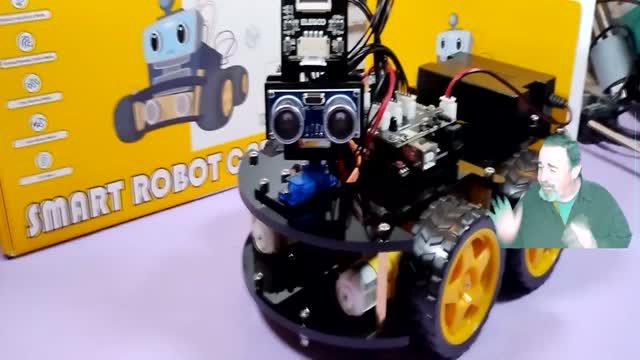
Your car uses an ultrasonic sensor โ€” the part that looks like two little eyes. One eye sends out a sound too high for us to hear. When that sound hits something, it bounces back, and the other eye listens for it. The car measures how long the echo took to return and uses that to figure out how far away the object is. Sound travels about 340 meters every second, so the math is quick!

Diagram of how the ultrasonic sensor measures distance with sound echoes
How the ultrasonic sensor measures distance โ€” from the ELEGOO V4 "Obstacle-avoidance Mode" tutorial (p.2).
Fun fact: Bats and dolphins find their food the exact same way. It's called echolocation.
Watch how the car detects an obstacle, stops, scans both ways, and turns toward the most open direction โ€” clip from DroneBot Workshop (2:40โ€“3:27).

Let's go!

1

Check the sensor is plugged in

Make sure the ultrasonic "eyes" sensor is mounted on the front and plugged into the board. On the V4 car it connects to pins D12 and D13 โ€” one pin sends the sound (Trig), the other listens for the echo (Echo).

Battery check: Switch the car OFF and make sure the batteries are charged before plugging in the USB cable.
2

Open the Obstacle-Avoidance program

Open the Arduino IDE and load the car's obstacle-avoidance demo sketch from the ELEGOO code folder. This is the program that tells the car: "drive forward, but if something is close, turn away."

3

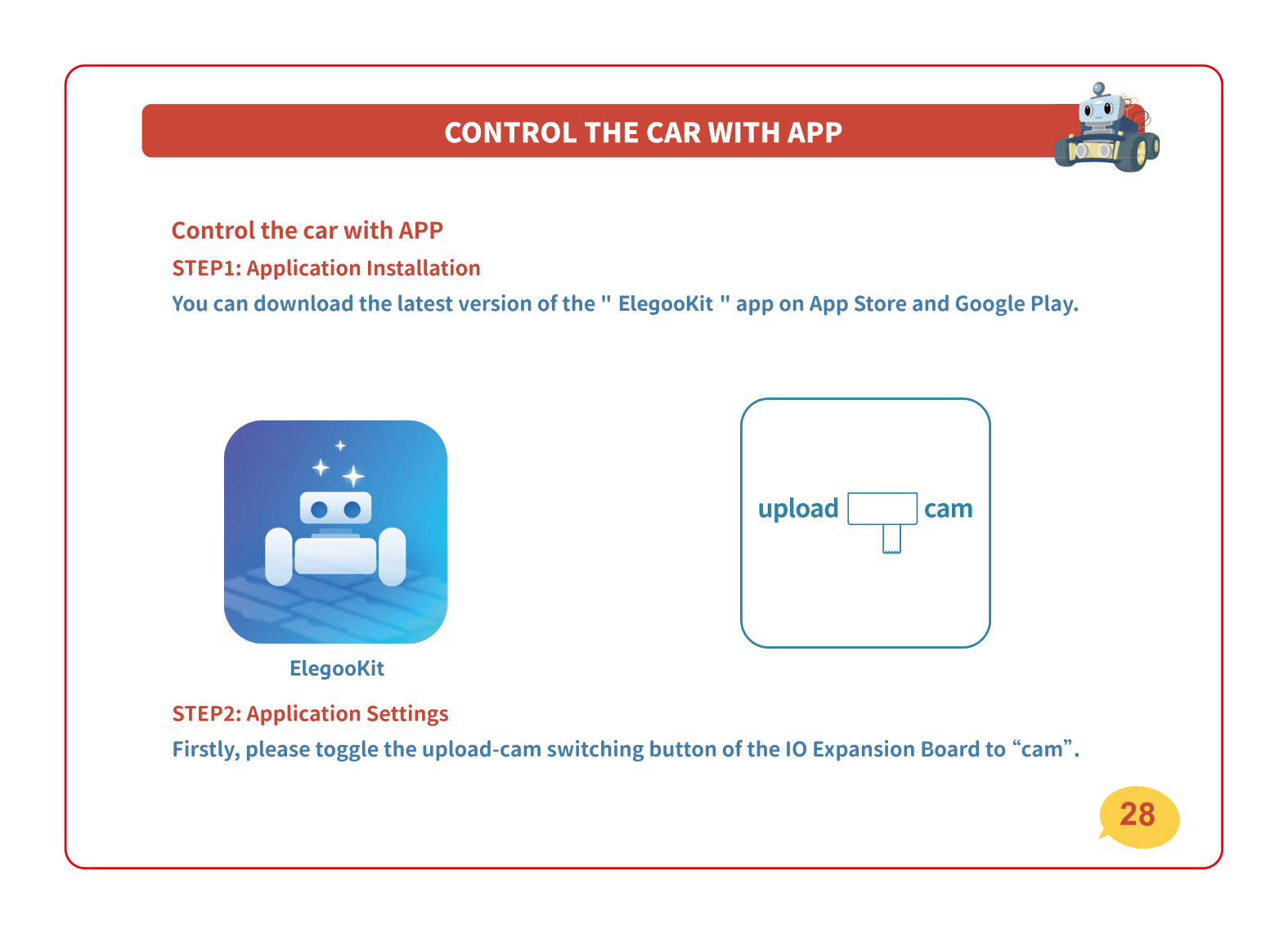
Flip the switch to "Upload"

Find the little "Upload / Upload-Cam" switch on the board and slide it to Upload. Then click the upload button (the arrow) in the Arduino IDE and wait for it to say "Done uploading."

Gotcha: If the upload fails, it's almost always because the switch is still on "Upload-Cam". Slide it back to "Upload" and try again.
4

Understand the car's "brain"

Here's the plan your car follows over and over, many times per second: it checks the distance, and if something is closer than 20 cm, it backs up and turns; otherwise it keeps rolling forward.

Flowchart showing the obstacle-avoidance decision logic
The decision the car makes โ€” from the ELEGOO V4 "Obstacle-avoidance Mode" tutorial (p.6).
5

Put it on the floor and let it roam!

Unplug the USB cable, set the car on the ground with space around it, and flip the power switch ON. It should drive forward and turn away whenever you put your hand or a box in front of it. Try building a little maze!

If something's not working

The car drives straight into the wall

The sensor probably isn't reading. Check that the ultrasonic sensor is firmly plugged into D12/D13 and facing forward (not tilted up or down).

Upload fails in the Arduino IDE

Slide the board switch from "Upload-Cam" to "Upload", confirm the right COM port and board are selected, then upload again.

The car spins or won't drive straight

Make sure all four motor wires are connected and the wheels turn freely. Low batteries can also make motors behave oddly โ€” charge them up.

Level up ๐Ÿš€

Can you make the car stop farther from obstacles by changing the 20 in the program to a bigger number? What happens if you make it smaller? Next, try the line-following mission and see if you can combine both behaviors!